Organizing Your Assets
A clear structure makes your digital asset library easier to manage as it grows.
| Category | Use Cases |
|---|---|
| Projects | • Individual campaigns • Client work • Product releases |
| Folders | • Asset types (Images, Source Files, Animations) • Workflow stages (In Progress, Review, Approved) • Deliverable formats (Social, Web, Print) |
| Tags | • Campaign names • Asset types • Usage context • Approval status |
Pro tip: Define naming and tagging conventions with your team early to keep your library clean and consistent.
File Naming Best Practices
Clear, consistent filenames help you find, manage, and reuse assets quickly.
Good Examples
-
hero-banner-spring-campaign-v2.png -
onboarding-animation-final.json -
logo-primary-blue.svg
Bad Examples
-
final-FINAL-use-this-one.png -
untitled-1.psd -
Screen Shot 2024-01-15.png
Naming Tips
-
Include the project or campaign name
-
Add version numbers (v1, v2, v3)
-
Use hyphens or underscores instead of spaces
-
Keep names descriptive but concise
Finding Your Assets
Use search and filters together to locate files quickly—even in large libraries.
Search By
-
Name: File or asset name
-
Tags: Custom labels you’ve added
-
Metadata: Automatically captured file details
Filter By
-
Format: PNG, GIF, Lottie, AEP, etc.
-
Project: Specific campaigns or workspaces
-
Status: Draft, In Review, Approved
-
Date: Upload date or last modified
You can combine filters for precise results, for example:
“Approved PNG files from the Q1 campaign.”
Version Control and Approvals
Uploading a file with the same name automatically creates a new version.
What You Can Do
-
Keep all previous versions
-
View full version history with timestamps
-
Restore earlier versions anytime
-
Compare versions side by side
-
See who made changes and when
Approval Workflow
-
Draft — Work in progress
-
In Review — Ready for feedback
-
Approved — Final and ready to use
-
Archived — No longer active
This ensures the right asset is always used—no guesswork.
Sharing Assets
Share assets securely while staying in control.
Controlled Share Links
-
Generate shareable links for assets or entire projects
-
Set permissions (view-only, download, comment)
-
Add expiration dates for time-sensitive access
-
Track link activity
CDN Delivery
Share links always point to the latest approved version:
-
Fast global delivery
-
Automatically up to date
-
No manual file transfers
-
Safe for production use
Best practice: Always confirm approval status before sharing final assets.
Managing Your Storage
Stay within limits and keep your workspace optimized.
Check Your Usage
-
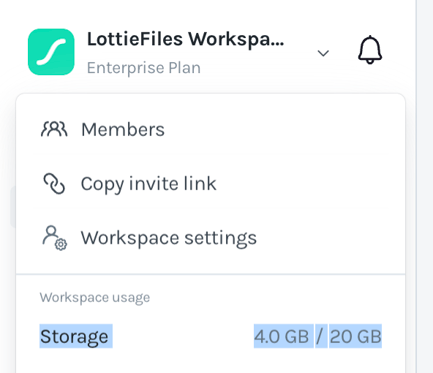
Click on the dropdown button next to your Workspace name
-
On the dropdown menu you will see "Storage"