
This guide explains how to enable SCIM (System for Cross-domain Identity Management) provisioning and configure role mapping in your LottieFiles Enterprise workspace.
Prerequisites
Before you begin, verify that:
- Your workspace is on the LottieFiles Enterprise plan (SCIM provisioning is only available on this plan)
- You have Workspace Owner or Admin permissions (required to enable and manage SCIM provisioning and role mapping)
Setup Instructions
Step 1: Connect Your Domain
If your domain is already connected, skip to Step 2.
- Navigate to Workspace Settings > Access & SSO Settings
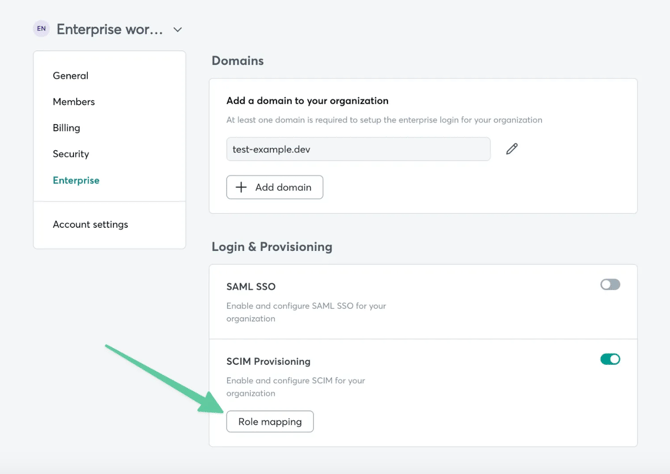
- In the right panel, click + Add Domain if your domain isn't connected yet
- Enter your domain to initiate the connection
- You'll be redirected to the Integration page with step-by-step instructions specific to your Identity Provider (IdP), such as Okta or Azure AD
- Follow these instructions to complete your SSO setup
Step 2: Enable SCIM Provisioning
- Scroll to Login & Provisioning > SCIM Provisioning
- Toggle the switch to Enable SCIM provisioning
Step 3: Configure Role Mapping
- After enabling SCIM Provisioning and Directory Sync, click the Role Mapping button
- You'll see a list of groups from your directory on the Role Mapping page
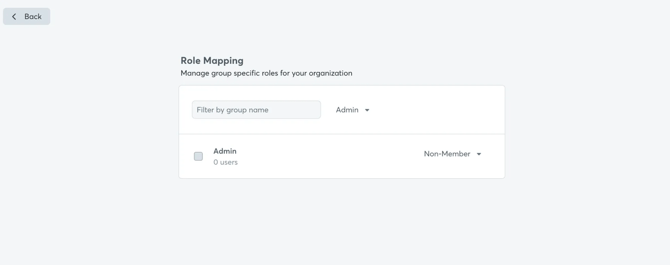
- Select the groups you want to sync to LottieFiles
- Assign the appropriate role to each selected group
Example: If you have an "Admins" group in your directory, you can assign it Admin access in LottieFiles. Many organizations create a dedicated LottieFiles group in their directory and sync only that group for easier management.
Troubleshooting
Groups not appearing in role mapping:
See our article Missing Groups in Role Mapping for solutions.
Role mismatch issues:
Refer to Troubleshooting SCIM Provisioning Role Mismatch Issues for detailed troubleshooting steps.
Need Help?
Contact our support team at support@lottiefiles.com
To help us resolve your issue quickly, please include:
- Affected user's email address
- Expected role from your identity provider
- Actual role assigned in the workspace (if any)
- Screenshots or logs from your IdP showing role attributes
- Whether the user was added before or after enabling SCIM
- Any error messages received during provisioning
- Confirmation of available seat allocation for the role