LottieFiles platform provides Digital Asset Management (DAM) which allows you to upload and manage all your creative files in one place — animations, images, videos, design files, and more.
DAM is also available directly in LottieFiles plugins (Figma & After Effects) where you can upload your assets directly from the application to your workspace.
Why use DAM?
Creative teams face a common challenge: too many assets scattered everywhere across different tools, folders, and devices. Finding the right file version wastes time and slows down production.
DAM gives you:
- Control: One centralized location for all assets
- Speed: Find what you need instantly with smart search
- Consistency: Everyone uses the latest approved version
What Can You Store?
Currently Supported:
- Lottie Animations: Lottie (.json), dotLottie (.lottie)
- Images: PNG, GIF, SVG, JPEG, WebP
- Source Files: AEP (After Effects), AI (Illustrator), PSD (Photoshop)
- Folder upload: Upload supported files in an entire folders while preserving structure
Coming Soon: Videos (MP4, MOV, WebM), Documents (PDF), Fonts (OTF, TTF)
Upload Limits
- Maximum file size: 20 MB per file
- Bulk upload: Up to 100 files at once
Storage Plans
| Plan | Storage | File Limit | Best For |
|---|---|---|---|
| Starter (Free) | 20 MB | 5 files | Testing, small projects |
| Individual | 2 GB | Unlimited | Solo professionals |
| Team | 5 GB | Unlimited | Collaborative teams |
| Enterprise | 20 GB | Unlimited | Large organizations |
Note: Free plan users are limited by whichever threshold is reached first—20 MB of storage OR 5 files.
Additional Storage (DAM Pro Add-on)
Need more storage?
Paid plan subscribers (Individual, Team, or Enterprise) can purchase additional storage from the workspace. Additional storage is billed monthly:
- 100 GB — $49/month
- 250 GB — $99/month
Important: Additional storage is only available for paid plans. Free (Starter) plan users cannot purchase add-on storage and must upgrade to a paid plan first.
Managing Your Storage
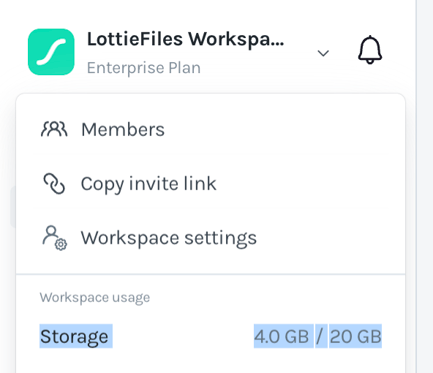
To check your usage:
-
Click on the dropdown button next to your Workspace name
-
In the dropdown menu, you’ll see Storage, showing how much you’ve used and your total available storage.
-
If you’ve used all your storage, you can purchase the monthly add-on directly from your workspace by selecting Upgrade storage.